
- Login into the isolved Cloud Service mobile app using your username and password. If you do not have the isolved Cloud Service app on your phone, go to the app store on your phone to download.
- Once in the app, go to Time Card.
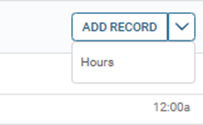
- To add hours to a day, click on the Add Record box drop down and select Hours
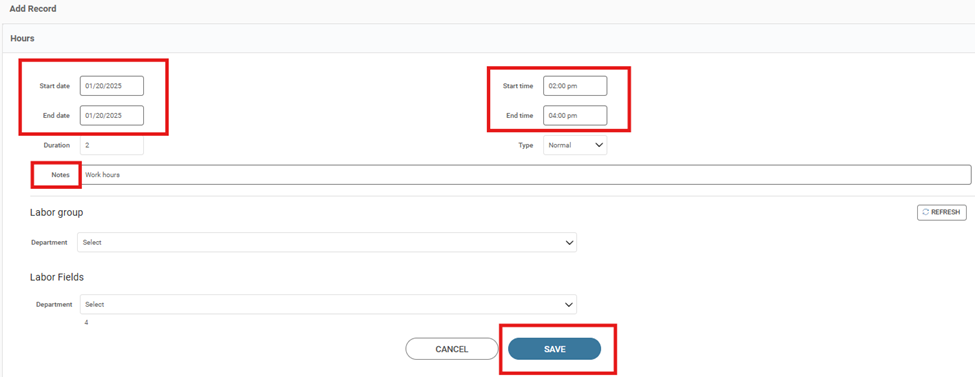
- Add the Start Date, End Date, Start Time, End Time and any Notes you want to add and then push Save. (Entering the Start and End Times can sometimes be tricky so if you’re trying to type in 2 PM for example, it’s easiest to enter exactly as shown here 2:00pm or 1400 hours military time and the system will autocorrect to 2pm)
- To edit hours that you already have in for a day, click on the day and the arrow in the time card, then the next arrow and the three dots, then edit:



- You will be taken to a screen that says Edit Record. You can then edit the date or time that you previously had in the time card to a new timeframe and then click on Save.